You plug your Garmin into your Mac. It starts charging. And then… nothing. No drive on the desktop, nothing in Finder, Garmin Express says it can't find a device, and BaseCamp says no device. It's one of the most common Garmin questions on Mac forums, and the cause is almost always one of a handful of things.
Quick fix (try these first)
- Use a different cable, ideally the one that came with the device.
- Plug straight into the Mac, not into a hub, dock or monitor.
- Unlock the device and watch its screen for a USB or mode prompt.
- If macOS asks Allow accessory to connect?, click Allow.
- Check whether your model uses MTP. If it does, it will never appear in Finder (fix 8).
First: does your Garmin mount as a drive at all?
Garmin devices talk to computers in two different ways, and this decides everything else:
✓ USB mass storage
- eTrex 10, 20, 30, 22x, 32x
- GPSMAP 60, 62, 64 series
- Montana 600, 610, 650, 680
- Oregon 6xx, 7xx
- Zūmo 3xx, 5xx
✕ MTP (Media Transfer Protocol)
- Edge 540, 840, 1040 and newer
- Zūmo XT, XT2
- DriveSmart car navigators (for example the DriveSmart 66)
- GPSMAP 65, 66, Montana 700
- Many fēnix, epix and Forerunner watches
If your device is in the right-hand column, jump to fix 8. Everyone else, start at the top.
Swap the USB cable
This is the number one cause. Many cheap USB cables only carry power, not data. Your Garmin charges, so the cable looks fine, but the Mac never sees it.
Power and data wires
Power only, no data
Plug straight into the Mac
USB hubs, docks and monitor ports often power a device without passing data through reliably. Plug the cable directly into a port on the Mac. On a MacBook with USB-C, try a simple USB-C to Micro-USB or USB-C to Mini-USB cable instead of an adapter chain, and try a second port.
Click “Allow” on the accessory prompt
On Mac laptops with Apple silicon, macOS asks before a new USB accessory can connect. If you missed or dismissed the prompt, the Garmin stays blocked.
Click Allow to let the accessory connect to your computer.
Wake the device and watch its screen
Turn the Garmin on and unlock it before you plug it in. Many handhelds show a “connected to computer” screen when the link works. Some models ask which mode to use when you connect; choose the option for the computer or Garmin mode rather than charging only.
Some watches also have a USB mode setting (often under Settings → System → USB Mode) where you can pick Garmin or Mass Storage instead of MTP. The menu names vary by model, so check your manual.
Make Finder show external disks
Sometimes the Garmin is connected, but Finder is set to hide external drives. In Finder, open Finder → Settings:
Downloads
LocationsGARMIN ⏏
Network
Quit the apps that grab the device
A Garmin that mounts as a drive can be read by several apps at once, but an MTP device can be opened by only one app at a time. Garmin Express can hold on to the connection while it checks for updates, which stops other apps from seeing the device, and the same goes the other way: if another app has it, Garmin Express may not find it.
MTP devices have an extra catch. macOS has a background process called ptpcamerad that opens cameras, phones and other MTP devices for apps that use Apple's Image Capture framework. While such an app, or another MTP app, is open, the device can stay busy. Look for:
- Garmin Express and BaseCamp
- Image Capture, Photos and Preview (an open import window counts)
- Android File Transfer and OpenMTP
Quit them all, then unplug the Garmin and plug it back in. Quitting alone often isn't enough: the device is only offered to apps again when it reconnects. ptpcamerad itself is part of macOS and is normally running; you don't need to (and shouldn't) stop it.
Check whether the Mac sees it at all
Open System Settings → General → About, scroll down and click System Report. Select USB in the sidebar.
- Garmin is listed: the cable and port work. The problem is the mode (fix 4), Finder settings (fix 5) or MTP (fix 8).
- Garmin isn't listed: it's the cable, the port or the device. Try another cable and port, then restart both the Mac and the Garmin.
MTP devices: use an MTP app
The Edge 540, 840 and 1040, the Zūmo XT family and many recent watches use MTP. macOS can't open MTP devices in Finder, so they will never mount as a drive, whatever you do with cables and settings.
- Browse files: install OpenMTP, a free, open-source MTP file manager for Mac. Garmin owners on the Edge forums report it working where nothing else did.
- Send courses: import a GPX file as a course in Garmin Connect and sync it to the device.
- Updates and maps: use Garmin Express, which supports these devices directly. Garmin Express 8.0.0, out in November 2026, runs natively on Apple silicon Macs without Rosetta; BaseCamp is still Intel-only.
Car navigator not detected by Garmin Express on a Mac (DriveSmart, Zūmo XT)
Newer Garmin car and motorcycle navigators, such as DriveSmart models and the Zūmo XT family, connect over MTP rather than as a USB drive. That's why they never appear in Finder, even when the connection works. Garmin Express talks to them directly, so it can still find them, but only if nothing else is using the device:
- Turn the navigator on before you connect it, and use a data cable straight into the Mac (fixes 1 and 2).
- Quit any other app that might have it open, including BaseCamp, Image Capture, Photos and Android File Transfer, then unplug and reconnect (fix 6).
- Don't look for it in Finder. An MTP navigator not showing up in Finder is normal, not a fault.
Restart both ends
When to unplug and replug: after you quit an app that was using the device, after you click Allow on the accessory prompt, and after you change a USB mode setting on the device. Wait a few seconds for the device to finish starting up before you plug it in again.
If all else fails: unplug, restart the Mac, power the Garmin fully off and on, then connect again with a known-good data cable. It sounds basic, but it clears a stuck USB connection more often than you'd expect.
How Trailshelf handles device detection
Trailshelf lists Garmin devices that mount as a USB drive in its sidebar as soon as you plug them in. It reads the device's own GarminDevice.xml file to find where that model expects GPX files, so you don't have to know the folder names. If nothing shows up, the Why isn't my device showing? link explains the likely reason right in the app.
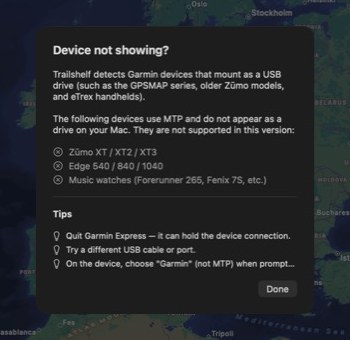
Trailshelf also works with MTP devices such as newer Zūmo and DriveSmart models. Quit Garmin Express, plug the device in and it appears under Devices. If another app is holding the device, Trailshelf says so and tells you which apps to quit, with a Try again button. You can browse and import its files; sending to MTP devices is in beta (tested on a DriveSmart 66), and it never replaces or deletes files already on the device. If it still doesn't show up, use one of the options in fix 8.
Frequently asked questions
Why does my Garmin charge but not show up on my Mac?
Usually the cable only carries power, the Mac is blocking the accessory, or the device uses MTP instead of USB mass storage. MTP devices never appear in Finder on their own.
Does BaseCamp work with MTP devices on a Mac?
BaseCamp can see some MTP devices, such as DriveSmart car navigators, but many newer MTP devices, such as Edge bike computers and watches, don't appear in it. For those, use Garmin Connect or Garmin Express.
Why can't Garmin Express find my device on my Mac?
Usually another app has the device open (BaseCamp, Image Capture, Photos, Android File Transfer, OpenMTP or similar), the cable is charge-only, or the Mac hasn't allowed the accessory. Quit the other apps, check the cable, then unplug and reconnect.
Does Garmin BaseCamp still work on a Mac?
Yes, on macOS 27, through Rosetta on Apple silicon Macs. Apple has said macOS 28 keeps only a reduced Rosetta for older games. See Garmin BaseCamp for Mac in 2026.
Can I damage my Garmin by unplugging it?
Always eject the GARMIN drive in Finder before unplugging. Pulling the cable while files are copying can corrupt the file being written.
Plug in. See your device. Send the route.
Trailshelf finds USB-mounted Garmin devices automatically and sends routes, tracks and waypoints to the right folder for your model.
Try Trailshelf free for 3 daysStep-by-step guide: Send to your Garmin. All guides